
What is covered in this article?
- Export students from Enquiry Tracker
- Import your records from Enquiry Tracker into Synergetic
- Processing your Transferred Record in Synergetic
Prerequisite
Please review this article to be sure ICON has been configured correctly to import students
Export students from Enquiry Tracker
Prior to importing your students or applications, they must be first exported from Enquiry Tracker. Read this article first to export your data.
Once you have exported your data, you are ready to import into ICON
Import your records from Enquiry Tracker into Synergetic, ICON or eSIS
Follow these steps to import your applications
- Open Synergetic
- Click Future Students
-
Select Process Online Applications/Enquiries Import
Note:If this menu option is not visible, please ask your IT team to give you the right permissions to access.
-
Under filters, make sure to set the following:
- Application Type: ALL
- Status: Pending
- Under Online Application Location, click the ellipses... next to the IMPORT button
- Locate the XML file that was downloaded from Enquiry Tracker, which will have a name like: <School_Name>_<YYYYMMDD>_<NNNN>.XML
- Click the Import button in Synergetic
- In the Confirmation dialog, click Yes
- Synergetic will read the file and load these student(s) and corresponding contact(s), which should now appear under the Application holding area.
- Select the desired student to import
- Once selected, you can review their details in the Application Detail area at the bottom
- Click the Transfer to Future button at the bottom right
Processing your Transferred Record in Synergetic
- Once you click Transfer to Future the dialog below will be displayed

- Follow the prompts, which include providing additional information and checking for matches to an existing Synergetic record.
- If a match is found, you will see the Possible Name Match Found dialog
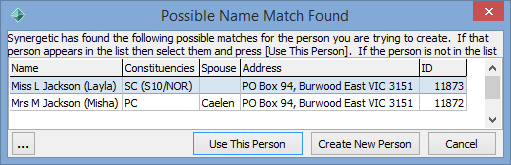
- If you are presented with this dialog you’ll need to:
- Check that the details in the results from Synergetic is a correct match to the data from Enquiry Tracker for Student/Parent
- If there is a match, click them and then click Use This Person button to avoid creating a duplicate parent.
Note: Please ensure you select the correct Synergetic record to avoid overwriting the wrong record - If there is NOT a match, click Create New Person button.
Note: After your have finished transferring the records to Synergetic, you should delete the XML file from your computer.