
What is covered in this article?
Step 1: Check ability to process applications
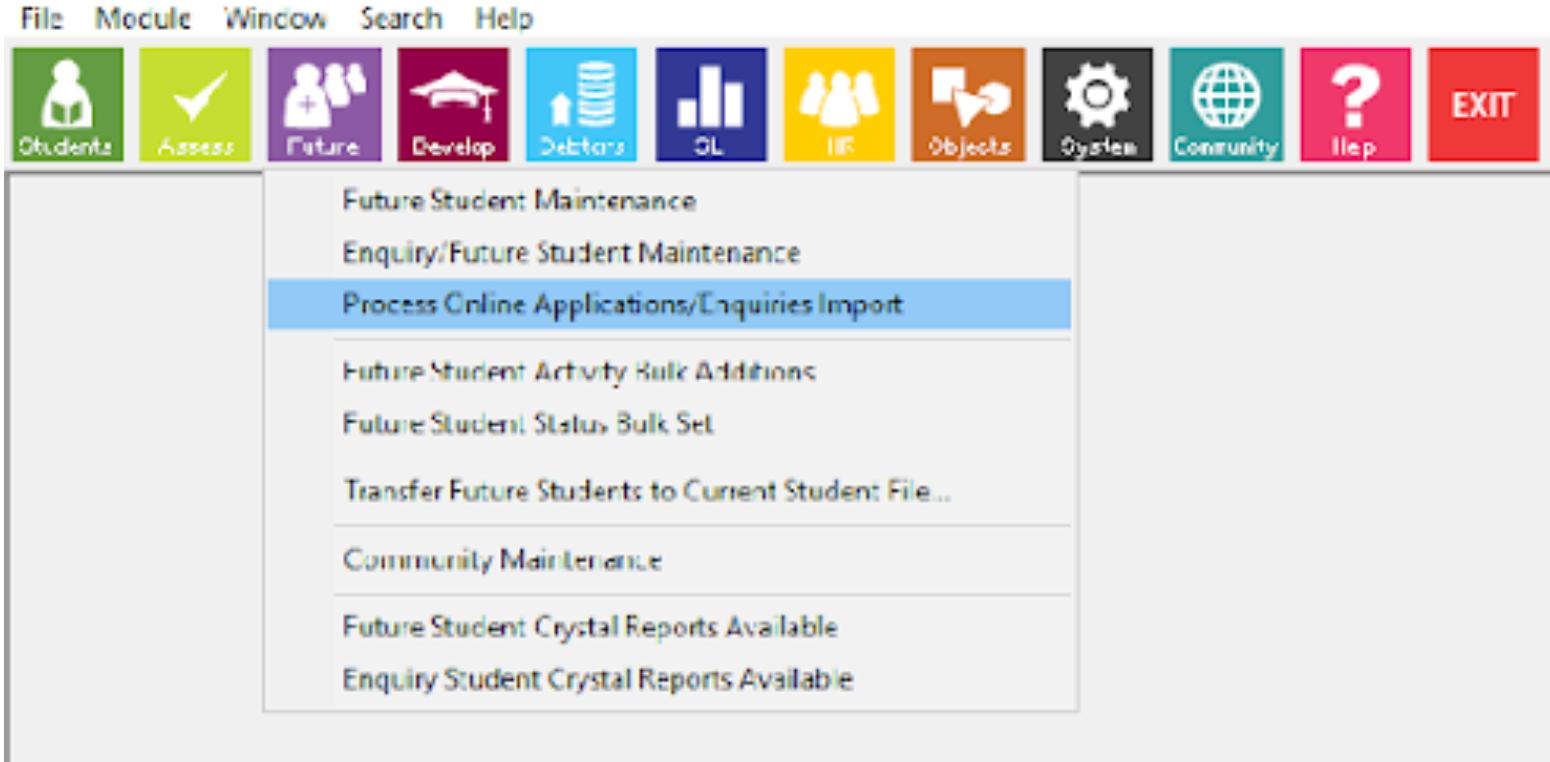
Check you have the Process Online Application Import/Export function under Future Students
- Log in to Synergetic
- Click on the Futures menu button
- Be sure you have Process Online Application Import/Export visible
| Note: If this menu item is not visible you need to check your User Status within eSIS. Specifically you will need a minimum level of Office Manager. If you need this added, complete an ICON User Access Request Form. |
Step 2: File Location
Check a setting in Finance Configuration Maintenance as all of your downloaded files from Enquiry Tracker must be in the same location for eSIS to be able to see them.
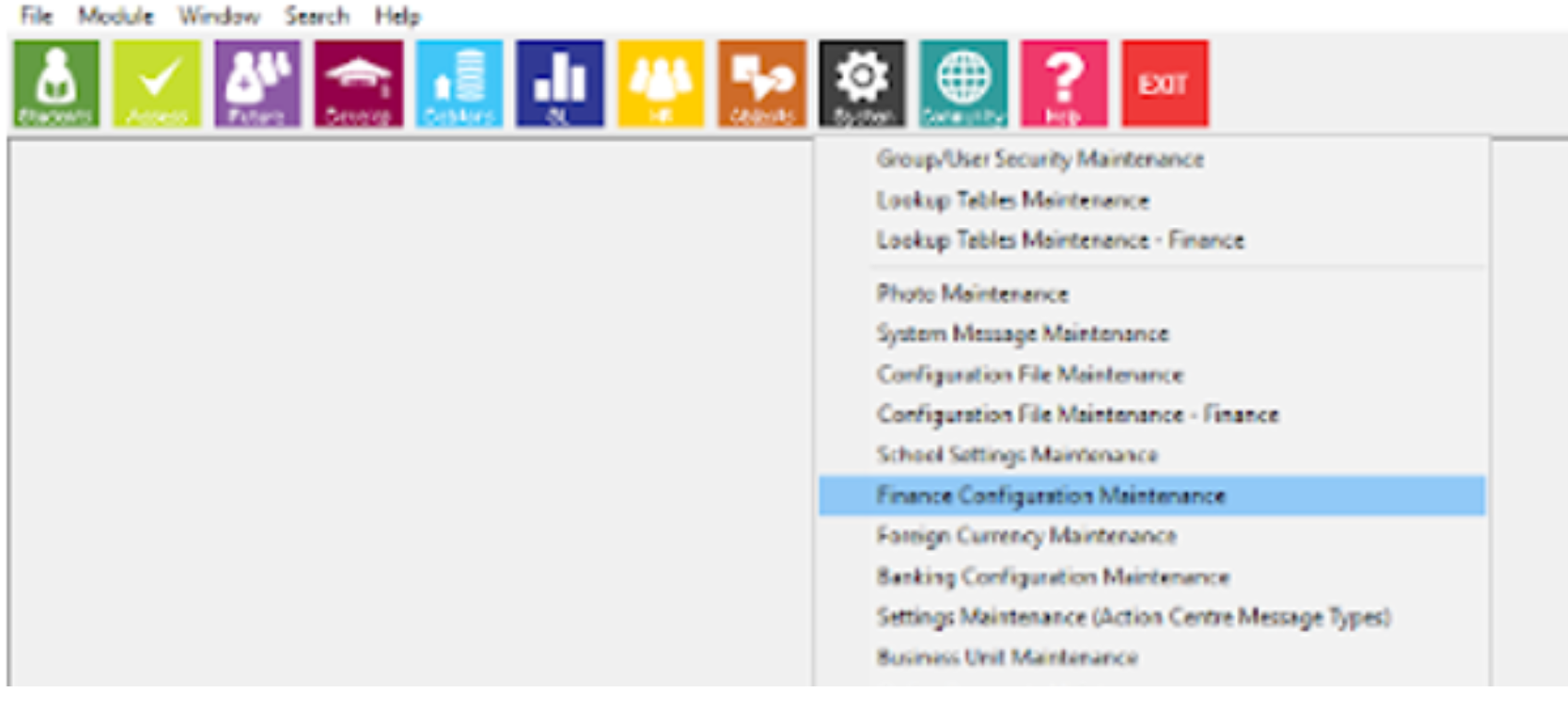
- Open the Financial Configuration page
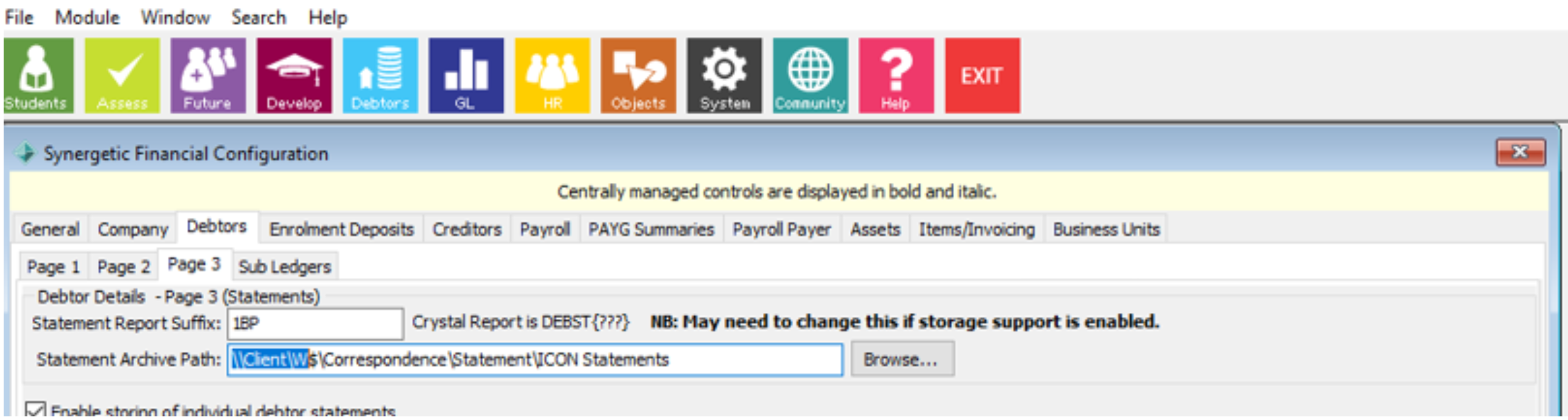
- Click on Debtors, Page 3 to locate the drive showing under the Statement Archive Path.
- Select the Drive. (You only need to note the drive, not the actual folder).
Once you have noted this, you don’t need to change anything, this is where you will need to place your downloaded files from Enquiry Tracker.
Step 3: Set Locations
- Click Future Students
- Select Process Online Applications
- Ensure the Online Application Locations contains the same path as what you noted from Step 2 File Location (copy & paste that information). This only needs to be completed once.

Read this article to import data into ICON
| Note: Make sure your Citrix has been updating and is on the most current version |