
What is covered in this article?
Getting Ready
Check-In Mode provides schools with a safe method to allow school staff or students to greet and check-in guests at your events. The nature of this mode allows you to provide check-in capacity on school devices without the risk of access to any other data in the system to those providing the service.
Check-in Mode works best when used on tablets. It is recommended to use Chrome as the browser and make sure they are running on the latest version of the operating system.
| Tip: The best checking in procedures involve students welcoming parents on a tablet. The subtext of the digital approach says the school empowers students in positions of leadership.
Furthermore, it says the schools is digitally savvy and allows the school to gather more information about the family and their prospective students. |
Enabling Check-in Mode
Event Check-in mode enables your students or any additional resources check in attendees as they arrive for a seamless experience .
As a School User, you need to log in to Enquiry Tracker all Tablets being used for an event.
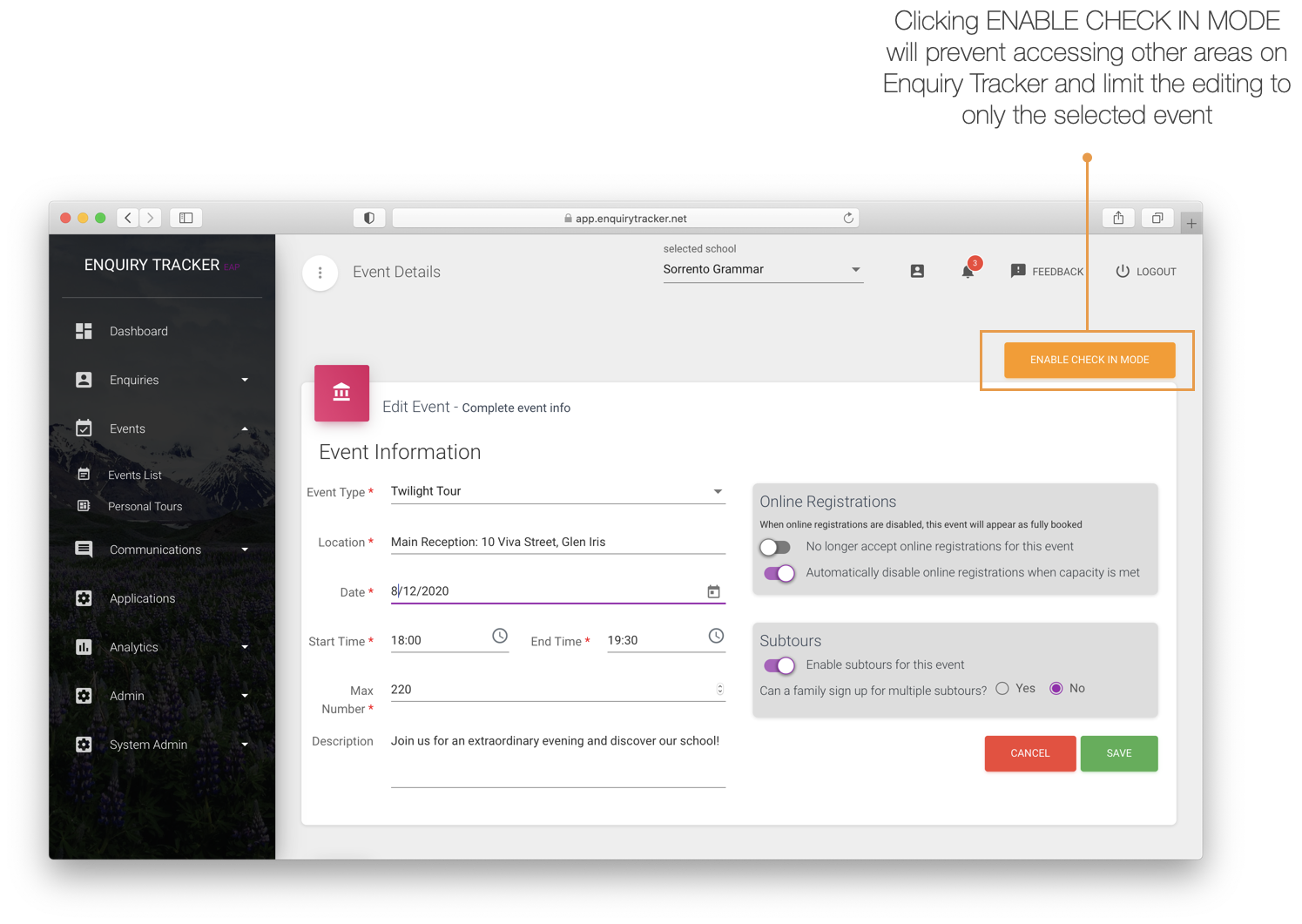
- Log in to your Enquiry Tracker Dashboard on your preferred check-in device (E.g iPad).
- Go to Events > Events List and find the event for which you are seeking to check-in guests for.
- Open up the Event details screen by clicking on the pencil/’Edit’ icon.
-
Note: For this mode to work, pop-up blocking must NOT be enabled. For iOS devices, follow these steps:
- Launch Settings
- Tap Safari
- Under the General section, click the toggle next to Block Pop-ups to enable or disable the pop-up blocker. A green toggle indicates an enabled pop-up blocker. Make sure this is OFF
For Android devices, follow these steps
- On your Android phone or tablet, open the Chrome app
- To the right of the address bar, tap More Settings
- Tap Site settings Pop-ups and redirects
- Turn Pop-ups and redirects on or offGo to the event and simply click on the Enable Check In Mode button at the top of the screen.
Note: This instantly logs the school user out for security reasons, but will instantly be logged in to Enquiry Tracker in a special representative mode.
Access to your Enquiry Tracker Dashboard is no longer available and users will not be able to return to the Dashboard or Event List under any circumstance. This allows schools to confidently pass on the check-in device to students or additional staff without any concern for data security or manipulation.
They will only be able to check people in or search for a person already registered and edit attendees record.
Using Check-in Mode

-
To check-in a family, simply mark the check-box located under the Actions column for the family attending your event. This will check-in all family members whom have been included in the RSVP.
Tip: You can filter guest names by typing in their details via the ‘Search Results’ field located at the top of the RSVP List table. -
To make adjustments to the check-in details for any family, simply click the pencil/’Edit’ icon. This will open the Event Attendees Dialog allowing you to make individual changes such as partially checking in guests, adding additional attendees, allocating guests to any relevant subtours and updating visitor information.
Note: Any personal messages that may be attached to contact’s booking during the registration process will not be displayed in this mode. Likewise, any special needs entered against the student record will not be visible in this mode.
-
Once you have completed all your changes, click the Save button.
-
You can register new attendees by clicking on the + Register Attendees button and either selecting an existing contact or adding a new contact altogether by clicking the purple ‘New Registrant’ button. See this article for more information
Logging Out
-
Once users have completed checking-in guests at your event, you can click the Logout button to exit Check-In Mode and return to the Login screen.
Note: The user will automatically be logged out after 4 hours.
Updating Data
As many users can access the system simultaneously they will need to update their screens to ensure they have the latest attendee numbers – tap the Reload button to refresh the screen data.