
What is covered in this article?
How to Select your Audience
One of the most important items is to make sure that when you use the filter to search for the list of people you want to send an email message to - always double check the list to be sure you are only sending emails that expect it!
We also cover how to schedule a message to be sent at a date in the future.
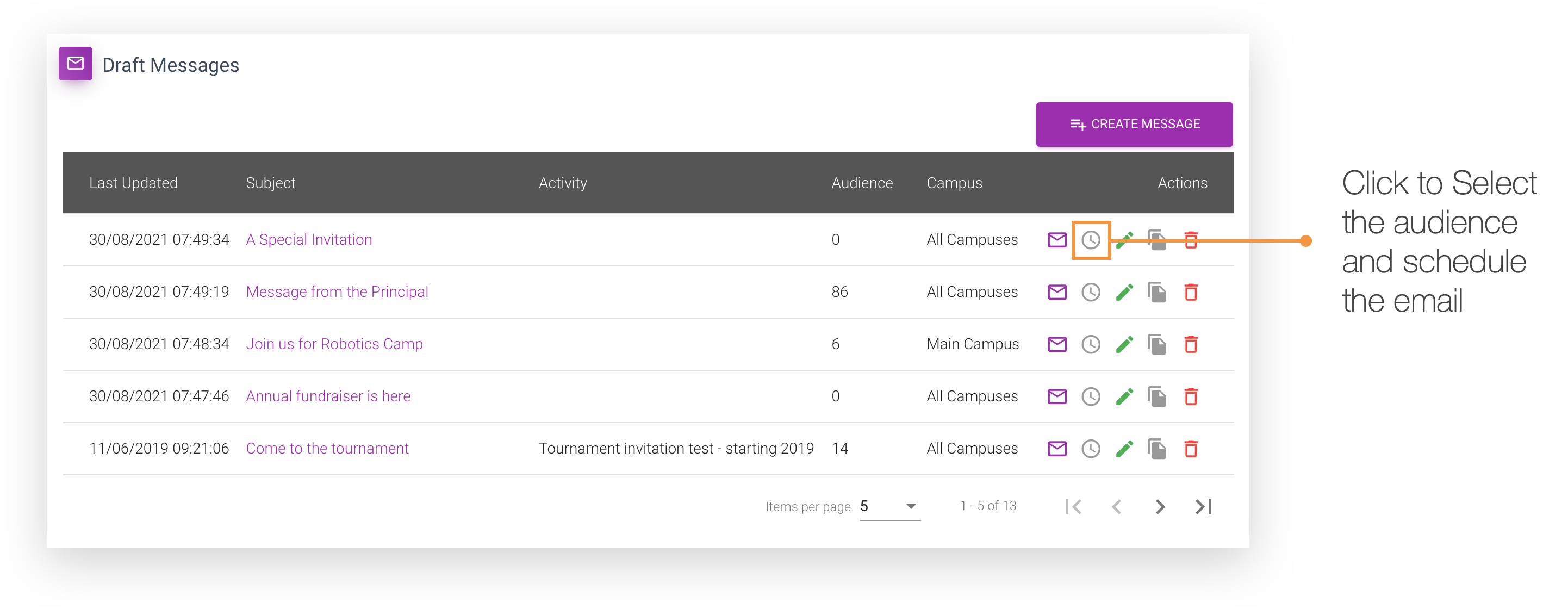
- Go to Communication> Emails
- Locate the Draft message you wish to select the audience
- Click the Select Audience icon

Draft message section contains any email that you are currently working on. These emails have not been scheduled to be sent, they just in progress and yet to be completed.
Setting the Filter
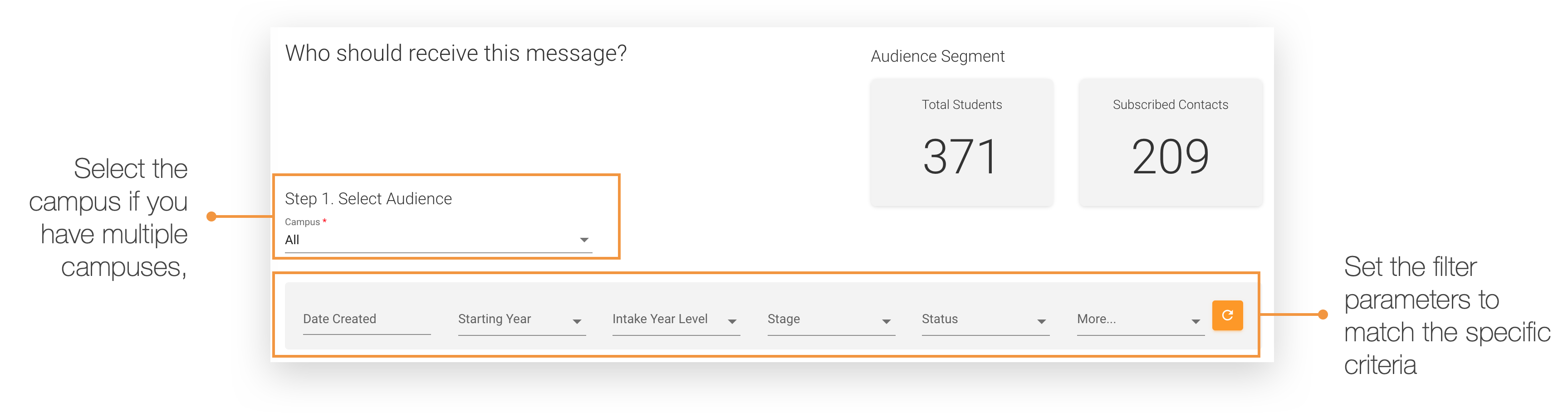
You now need to decide who in your contact list will receive the email. The goal here is to set the filter to match the desired criteria.
After you have specified the filter options, you can click on the Total Students or Total Contacts box to can see who will receive the message.
|
Tip: Given school's have extra curricular programs and specialist areas of study can engage and excite families. By capturing this information, you now have the opportunity to send email comms that are on target - families are getting the types of emails based on their child's interest etc. Make sure you send emails to those families that expect the email! |
Specify Activity
Specifying the activity is optional, but recommended. When this option is selected the corresponding activity will be recorded against each student's activity log that matches the search criteria.

Sending the Message
Next step is to decide when the message will be sent. You have two options:
- Send immediately
- Send on a specific date and time
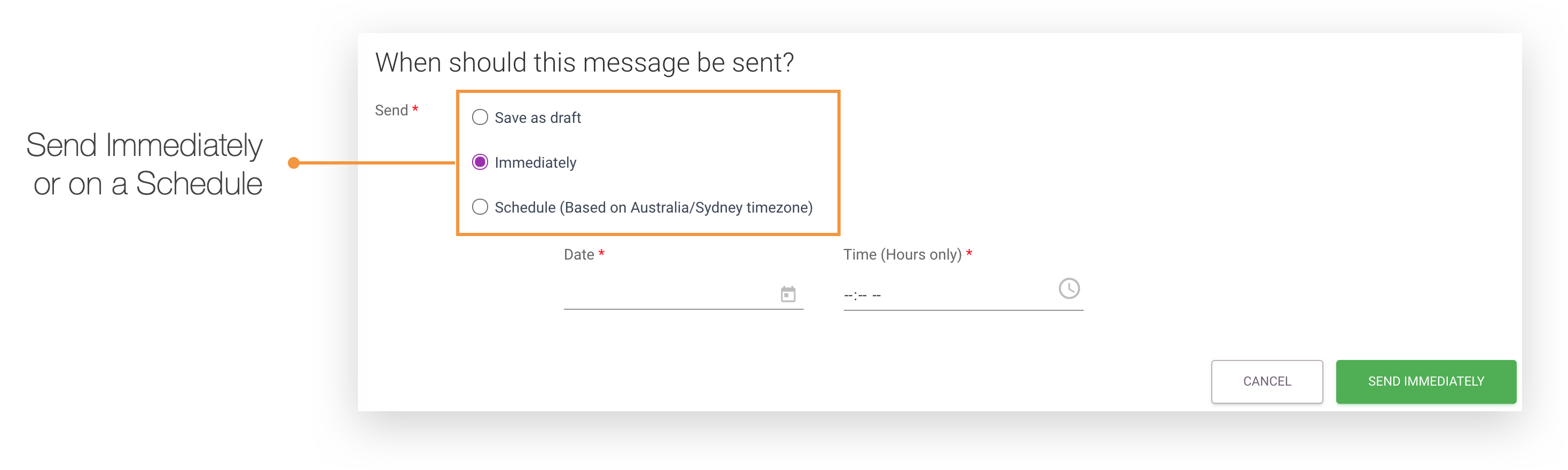
If you choose Send Immediately, the message will be sent and if an activity log was specified it will be recored against each student that matches that criteria.
When selecting Schedule the message will be sent on a specific date and time based on the displayed timezone.
|
Note: If you choose to schedule your email to be sent at a later date, the result set for original search will remain the same even if any of those students or contacts move in and out of the search criteria. |